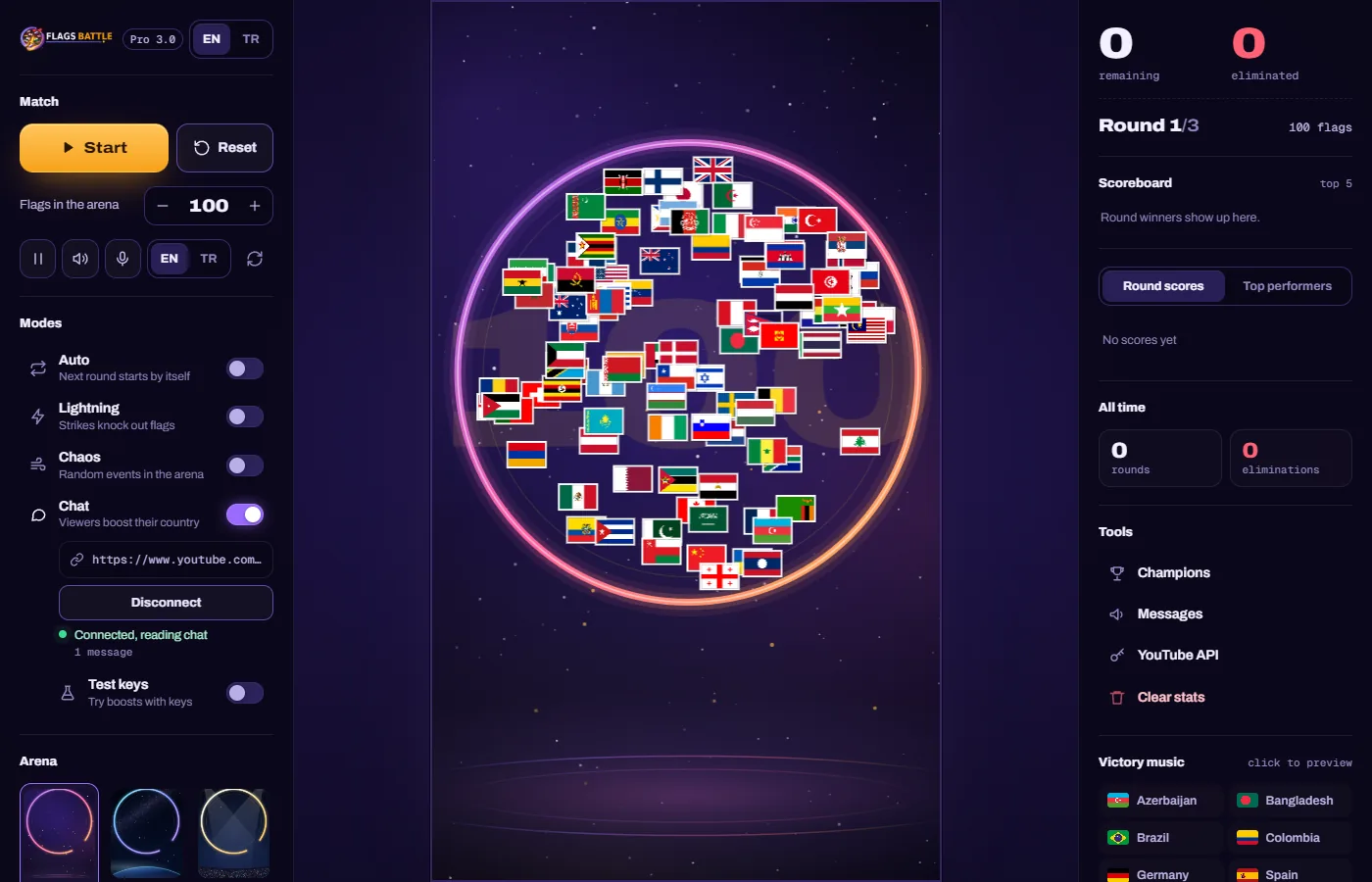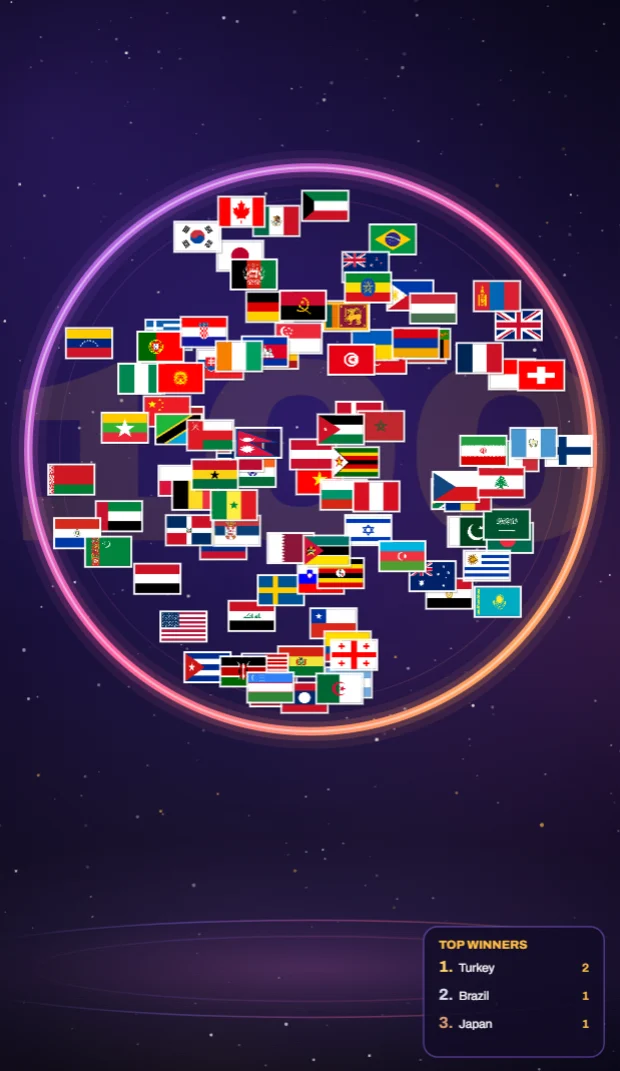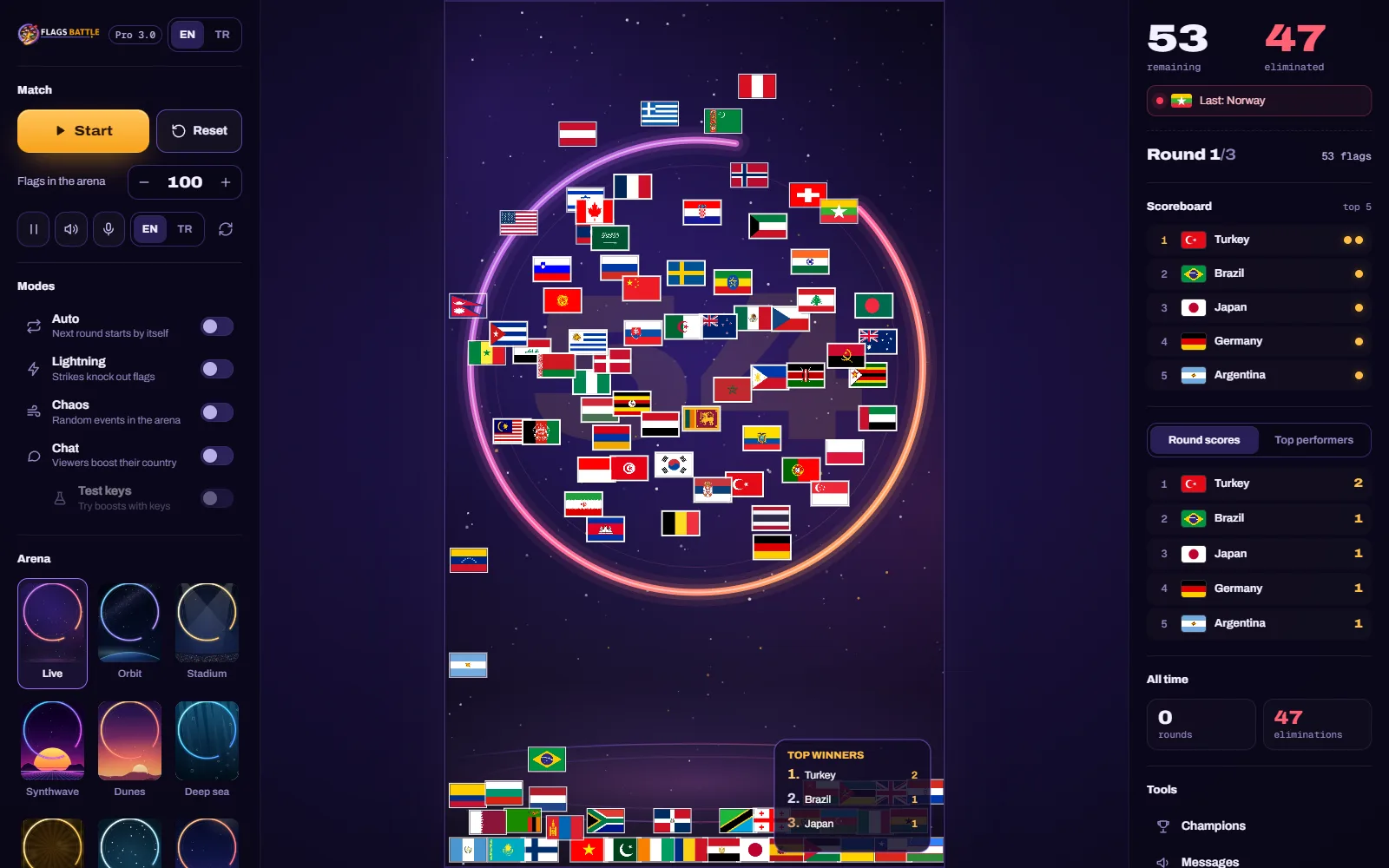
FlagsBattle Pro is a Windows app. You download it from your profile on flagsbattle.com, install it like any other program, sign in with your Google account and paste your license key once. After that, the app opens straight into the game and keeps itself up to date.
What you need
- A Windows 10 or Windows 11 PC (64-bit) with about 1 GB of free space.
- An active FlagsBattle Pro license. The license key comes by e-mail after your purchase, and you can also copy it from your profile. It looks like
ABCD-EFGH-JKLM-NPQR. - A Google account. You sign in to the app with it, and your license is linked to the account you activate it with.
Step 1: download the app from your profile
- Log in at flagsbattle.com with Google (the YouTube or Gmail button), using the e-mail address you bought FlagsBattle with.
- Open My profile and scroll to the Download center.
- Next to FlagsBattle Desktop, click Download.
The installer is about 450 MB. After a quick license check, your browser downloads it like any other file: the progress shows in the browser's downloads, and an interrupted download can be resumed there. The file is called FlagsBattle Setup 3.0.2.exe or a newer number.
Step 2: remove an old version first
If you used FlagsBattle 2.0 before, remove it before you install: open Windows Settings → Apps → Installed apps, find FlagsBattle and choose Uninstall. Versions 2.0.0 and 2.0.1 can no longer sign in, and versions before 3.0 do not update themselves. Your license is not affected.
Step 3: run the installer
- Open the file you downloaded.
- Windows may show a blue "Windows protected your PC" window, because the installer is new and not yet widely known to Windows. Click More info, then Run anyway.
- Keep the suggested folder or pick another one, then click Install and Finish.
The installer adds a FlagsBattle shortcut to your desktop and to the Start menu.
Step 4: sign in with Google
Start FlagsBattle. On the sign-in screen, click Login with Google and choose your Google account in the window that opens. The globe menu on that screen switches its language (English, Türkçe, हिन्दी, العربية, Русский); the game itself is in English or Turkish.
Use the same Google account every time. The e-mail and password fields on that screen are for separate accounts made inside the app; your flagsbattle.com password does not work there.
Step 5: activate your license
Usually there is nothing to do: the app looks up the license bought with, or linked to, the same Google e-mail and activates it by itself. If you see Start Game, click it. If the license screen asks for a key instead:
- Paste your key into the License Key field. Copy it from the e-mail or from your profile rather than typing it.
- Click Activate. The app confirms it in Turkish, "Lisans başarıyla aktifleştirildi!" (license activated), and opens the game by itself a moment later.
You only do this once. A license works on one computer, with the Google account you activated it with. From the next start, the app goes straight into the game.
Step 6: run your first battle
The game is ready to play and to stream as it is. The streamer guide walks you through the control room: starting a battle, the modes, the arenas and the settings. To put it on your stream, follow our OBS Studio guide.
Optional: if your viewers should play from the YouTube chat, with their flag emojis winning shields for their country, the app also needs your own free YouTube Data API key. It takes about five minutes; our API key guide shows how.
Updates
FlagsBattle 3.0 and newer update themselves. When a new version has downloaded, the game shows Update ready: it installs when you close the game, or straight away if you click Restart and update. You never need to download the app again for an update.
If something goes wrong
- The download seems to do nothing. Open your browser's downloads (Ctrl+J): the file is large, so it can take a few minutes on a slow connection. If it stopped, resume it there or click Download again.
- "Your session has expired" or "Session expired or invalid" on your profile. Log out of the site and log in again, then download. A sign-in on the site lasts 30 days.
- You bought with an e-mail address that has no Google account. Signing in to the site is with Google only, and your profile shows the license of the address you sign in with. Write to us from the address you bought with, and we will move your license to your Gmail address.
- Your antivirus removes the file. Restore it from quarantine, or allow it, then run it again. Only use the installer from your profile.
- Google sign-in fails with "auth/api-key-not-valid". You are running an old version (2.0.0 or 2.0.1). Uninstall it (step 2) and install the current one from your profile.
- "Bu lisans anahtarı başka bir hesapta kullanılıyor" (this key is used on another account). The key was activated with a different Google account. Sign in with that account, or write to us if you no longer have it.
- The app says "Subscription not active" ("Aboneliğiniz aktif değil") although your profile shows an active license. The license may be activated on another computer (a license works on one PC), or you signed in to the app with a different Google account. Sign in with the account you activated it with; if you moved to a new PC, write to us with your license key and we will sort it out.
- "Geçersiz lisans anahtarı" (invalid license key). Copy the key again from the e-mail or your profile, with no spaces before or after it.
- "Bu lisans anahtarının süresi dolmuş" (this key has expired). Your profile shows how many days your license has left; you can renew it on the buy page.
Still stuck? Ask on the support board or write to contact@flagsbattle.com with your license key and a screenshot of the message.